
Lang Switcher: A Keyboard Layout Switcher With an Undo Key
Lang Switcher fixes a word typed in the wrong layout when you press Pause — and a second press puts your original text back. Open source, written in Rust.
Hi, I’m Panda Koder, and this post is about Lang Switcher, a small open-source tray app I wrote in Rust to fix text typed in the wrong keyboard layout. The source is on GitHub; the installer, the docs and the FAQ live on the Lang Switcher page of my site. It’s free, under MIT or Apache-2.0, your pick.
Plenty of tools will change the keyboard layout for you. Lang Switcher fixes the word you already typed, and — the part I care about most — it can take that fix back.
It’s a non-commercial side project. I’m posting it here because developers who type in more than one alphabet are exactly the people who’ll find where it falls short, and that kind of feedback is what it needs most right now.
The bug I kept reproducing by hand
You leave a review comment right after a chat in Russian, and “looks good” lands as “дщщлы пщщв”. Or you come back from writing Greek, and “hello” turns into “ηελλο”. The layout indicator was right there in the corner; you just didn’t look. Delete, Win+Space, retype. It’s a tiny chore, and it never goes away.
One key to fix it, the same key to undo
Press Pause right after the word, and Lang Switcher retypes it in the other layout and switches the layout, so the next word comes out right. If the whole line is off, select it first, and Pause fixes every word in the selection.
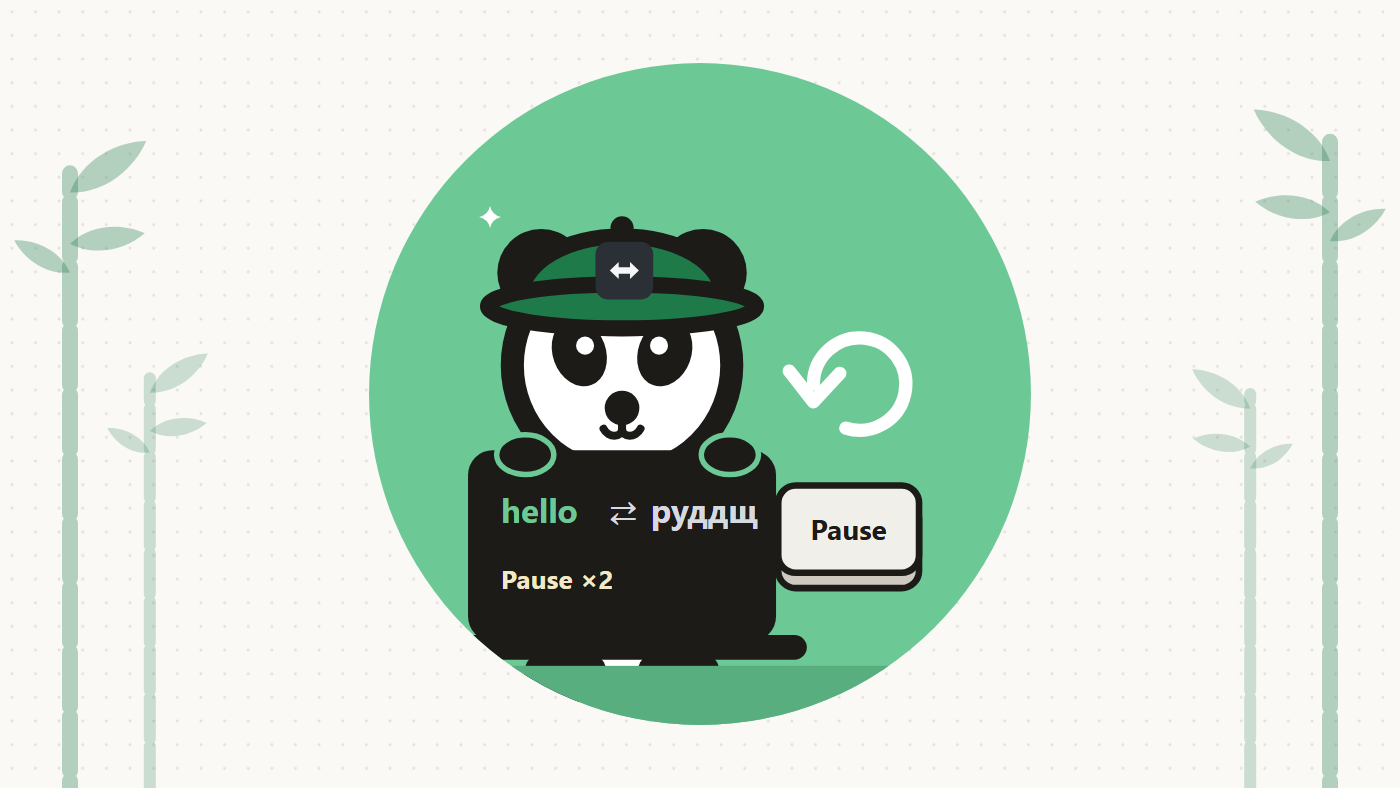
The undo is the feature I’d defend in a code review. A fix you can’t take back makes you hesitate before pressing the key, and this one is reversible: hit Pause a second time, and the original text comes back, letter for letter.
With three or more layouts, the same key walks a cycle of up to eight, in the order you choose. Every press shifts the word one layout further along, and after the last one you’re back where you started. The program page shows it with three layouts: руддщ, then hello, then יקךךם, then руддщ again. If you’d rather not cycle, “Pair” mode fixes one source and one target and leaves the other layouts alone.
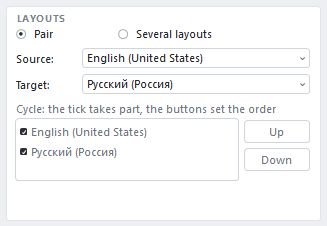
That’s my definition of an automatic keyboard layout switcher: one keystroke from you, and the program handles everything else, but it never guesses and never acts on its own. Until you ask, Lang Switcher changes nothing.
How it works (the public parts)
All of this is in the documentation and in the source.
- Keys, not letters. The program remembers the keys you pressed rather than the characters they produced. On Pause, it asks Windows what the same keys type in the other layout. That’s how Shift+2 becomes @ in English and " in Russian without any per-language tables, and why any Windows layout works: Hebrew, Arabic, Greek, Ukrainian, layouts for more than 100 languages.
- Where that breaks down. Chinese, Japanese and Korean build each character from several keystrokes, so there’s no key-to-key mapping, and those layouts stay out.
- Replacing text. In ordinary windows, it selects the word you typed and types the replacement over it in one go, so autocomplete can’t eat any letters. The clipboard isn’t touched for that; converting a selection does go through it, and the program puts it back exactly as it was. Consoles are the exception: the word you just typed gets fixed, but a selection can’t be, because reading it would take Ctrl+C, and in a console that stops the running command.
- Layout state. Switching by hand with Alt+Shift, Ctrl+Shift or Win+Space doesn’t lose the word, since the layout is stored with every keystroke. When Windows 11 keeps a separate layout per window, it switches the one you’re typing in.
- Elevated windows. It works in windows of programs run as administrator. To make that possible, the installer creates its own code-signing certificate on your machine, signs the program with it and destroys the key right away; uninstalling removes the certificate. What Windows doesn’t allow, it doesn’t try: no keystrokes on the UAC prompt, the Ctrl+Alt+Del screen or the sign-in screen.
- Kill switch. Ctrl+Alt+Shift+F12 removes the keyboard hook and exits. It’s checked before anything else, and you can’t assign it as the hotkey.
What I was careful about
Installing a keyboard hook is a big ask, so here’s what happens to your input:
- There’s no telemetry and nothing about you.
- Nothing you type is ever written to disk. The buffer lives in memory and gets overwritten with zeros at every reset.
- Password fields get no typing buffer. The program spots them with three checks, UI Automation among them, and answers Pause there with a dull thud. One caveat: a field whose type can’t be determined is treated as an ordinary one.
- Network: it fetches a short news file from my site once a day, and nothing about your computer goes with it. Updates come from the same place; it checks my signature and installs them while the computer is idle.
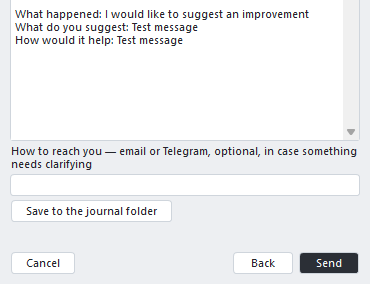
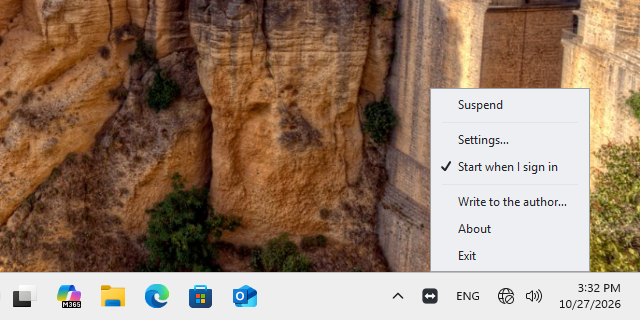
- Feedback: “Write to the author…” in the tray menu shows you a preview and sends the message to my site with one button, Send. Nothing leaves until you click Send yourself, and what leaves is exactly the text you saw. A contact is optional, only in case I need to ask you something. If my site doesn’t answer, press Retry, or email the same text to lang.switcher@panda-pishet-kod.dev, or save it to a file.
Setting it up
- System: Windows 10 version 1607 or later, or Windows 11, 64-bit.
- Install: grab it from the download page or from GitHub releases. Because the installer carries my own signature, Windows flags an unknown publisher and asks you to confirm.
- Configure: with two layouts, you don’t. The hotkey, layouts and exclusions are in Settings, and all of it lives in one file, %APPDATA%\Lang_Switcher\config.toml, which is handy when you move to a new machine.
- No Pause key? “Settings…” → “Hotkey” → “Set” accepts a single key, a Ctrl, Alt or Shift combo, or a double Shift press.
- Exclusions: in an excluded program, nothing you type is remembered, and the hotkey goes to the program itself.
- Interface: 66 languages.
Other tools solve different problems
This isn’t a ranking. Each of these was built for a different habit:
- Caramba Switcher guesses the language from your letters and switches the layout on its own, and so does Punto Switcher.
- LangOver wants a selection first: highlight the text and press F10.
- PowerToys Keyboard Manager and AutoHotkey remap keys, so the layout shortcut can live on Caps Lock. AutoHotkey also means writing the script and looking after it on your own. Neither one fixes text that’s already typed, and PowerToys has had an open request for a converter between layouts since December 2021 (#14850).
Lang Switcher’s niche is narrow on purpose: fix the last word or the selection when you ask, and let you undo it.
Thanks for reading
Thanks for reading this far. If you type in two alphabets, give it a try. And if it breaks somewhere, whether it’s a layout, an editor or a strange text field, I’d really like to hear about it on GitHub Issues or through “Write to the author…” in the tray menu. I’d be glad to have you among its users.
This post was written with the help of an AI assistant. I reviewed it and checked the facts against the program and its documentation.
About the author
- I’m Panda Koder, a solo developer. I write Windows utilities in Rust right on top of the Win32 API, plus small tools that run in the browser. My main project is Lang Switcher: you type руддщ when you meant hello, press Pause, and it fixes the last word and switches the keyboard layout. It’s open source (MIT or Apache-2.0), sends no telemetry and never writes keystrokes to disk. Here I post notes on Windows input, keyboard layouts and the code behind them.
Comments
Join the discussionThe keystroke-buffer approach is the right one for layout conversion; a character-level table would fall over on Shift+2 immediately, as you show. The part I would tighten is the fail-open on unknown field types: if UI Automation can't tell whether a field is a password, I'd rather treat it as one (no buffer, thud on Pause) than risk keeping keystrokes from a custom password widget. The console rule of never using Ctrl+C to read a selection is the same kind of conservative default, and it fits the rest of the design well.
Thanks — glad the Shift+2 example made the case.
I'm keeping the default as it is, on purpose. If "unknown" meant "password", the program would fall silent in most Electron apps and web pages, where UI Automation answers slowly — it would stop doing its one job exactly where people type the most.
Your worry about missed password fields was fair, though, and not only in theory. Up to 1.4.4 the program failed to recognise password fields in WinForms programs, and in Edge, Chrome and Firefox when you reached the field with Tab. That wasn't a timeout: the checks gave a wrong answer, so a fail-closed default wouldn't have caught it either. 1.5.0 fixes it — the program now listens to UI Automation focus events as well as asking EM_GETPASSWORDCHAR. And in a password field, Pause now only switches the layout; it never converts what was typed.
What it keeps in ordinary fields stays in memory only: never written to disk, a log or a crash dump, and overwritten with zeros at every reset. If an app has its own password widget that slips past the checks, put the app on the exclusion list, and nothing typed there is kept at all.